 Integration guide
Connect Gorgias to BuyScout® AI Store Agent
Turn confirmed shopper issues into Gorgias support tickets. This guide covers what the integration does, what you need, and how to connect, test, and manage it.
What the integration does
When a shopper asks for help from your team, BuyScout® AI Store Agent can turn the request into a ticket in your Gorgias helpdesk. Your team then follows up in Gorgias, where they already work.
- Shoppers stay in control. BuyScout® prepares the request, and the shopper reviews it and sends it themselves.
- Your team gets the context. Each ticket includes the shopper's contact details, the confirmed issue, the relevant conversation, and a link back to the conversation in BuyScout® Dashboard.
- Tickets land where you choose. Assign them to a Gorgias team and add your existing Gorgias tags.
How support tickets work
- A shopper asks for help from your team in the BuyScout® chat on your store.
- The AI Store Agent prepares a support request with the issue, a short summary, and the shopper's contact details.
- The shopper reviews the request and selects Send support request. Nothing is sent until they do.
- Gorgias receives one new ticket, and your team follows up from Gorgias.
Each ticket includes:
- The issue the shopper confirmed, as the ticket subject
- The shopper's email address, and their name if they gave one
- A summary of the request
- Order details the AI Store Agent looked up during the conversation, if any
- The page the shopper was on and the products involved
- The recent conversation
- A link to the conversation in BuyScout® Dashboard
This is a one-way handoff, not a live chat transfer. Replies sent from Gorgias don't appear in the shopper's chat, and later chat messages and attachments aren't added to the ticket. Voice conversations can't send support requests: the AI Store Agent asks the shopper to continue in text chat.
Before you start
- A paid BuyScout® plan. Gorgias tickets are available on the Starter, Growth, Pro, Scale, and Enterprise plans. Compare plans.
- BuyScout® installed on your Shopify store, with the store connected to your BuyScout® account.
- Owner access to the store in BuyScout® Dashboard.
- A Gorgias account for the helpdesk that supports this store.
- Permission to approve apps in Gorgias. If you can't approve app access, ask your Gorgias admin for help.
- Pop-ups allowed for BuyScout® Dashboard in your browser. Gorgias opens its approval page in a new window.
Connect Gorgias
Complete these steps in BuyScout® Dashboard, with one approval step in Gorgias.
Open Integrations
In BuyScout® Dashboard, go to Agent > Integrations. Under Customer support, find Gorgias and select Connect.
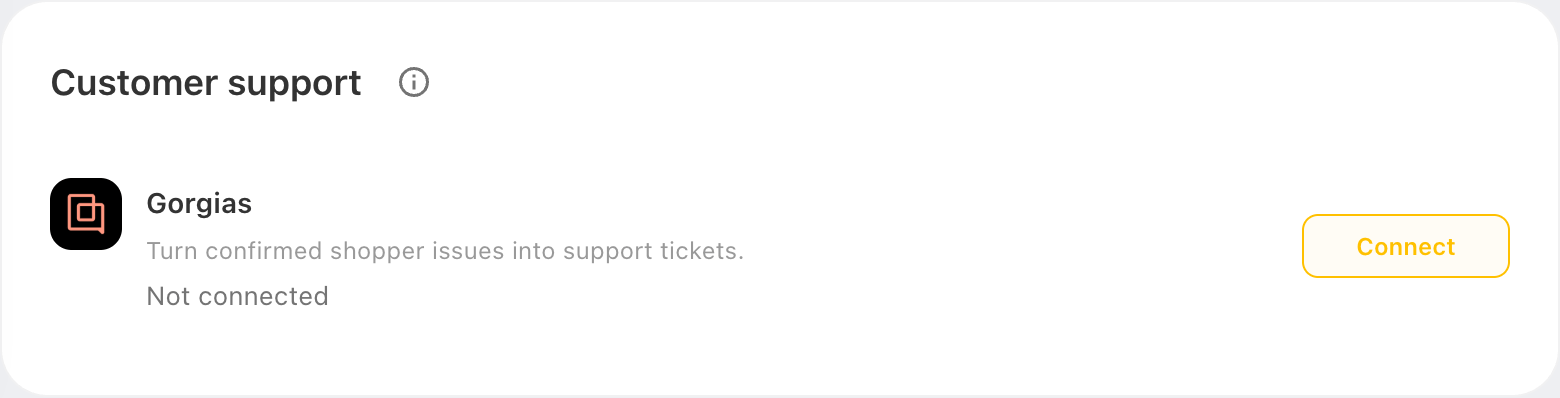
Agent > Integrations, before Gorgias is connected. Sample data Enter your Gorgias account
Enter the Gorgias account that supports your store, then select Next. You can enter the account name, such as
aurora-goods, or the full address, such asaurora-goods.gorgias.com. To find it, open Gorgias and copy the address from your browser.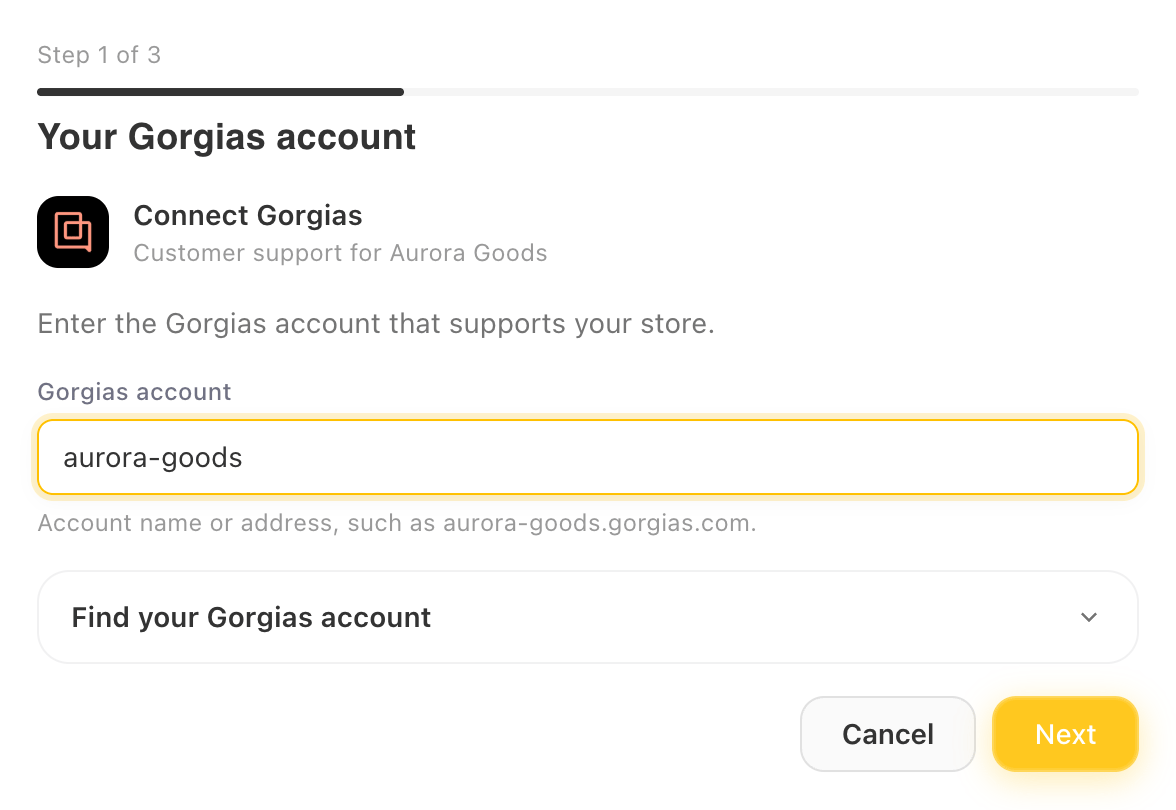
Enter the account name or address. Sample data Approve access in Gorgias
Select Authorize in Gorgias. In the Gorgias window that opens, sign in if asked, then approve access for BuyScout®. The window closes and setup continues on its own.
BuyScout® asks for access to your account details, teams, tags, tickets, and customers, so it can create each ticket for the right customer and apply your settings.
Choose ticket settings
- Create support tickets is on. Leave it on to start creating tickets when you save.
- Assign tickets to: choose a Gorgias team, or leave Unassigned so your team can triage tickets in Gorgias.
- Ticket tags (optional): choose up to 20 existing Gorgias tags. To use a new tag, create it in Gorgias first.
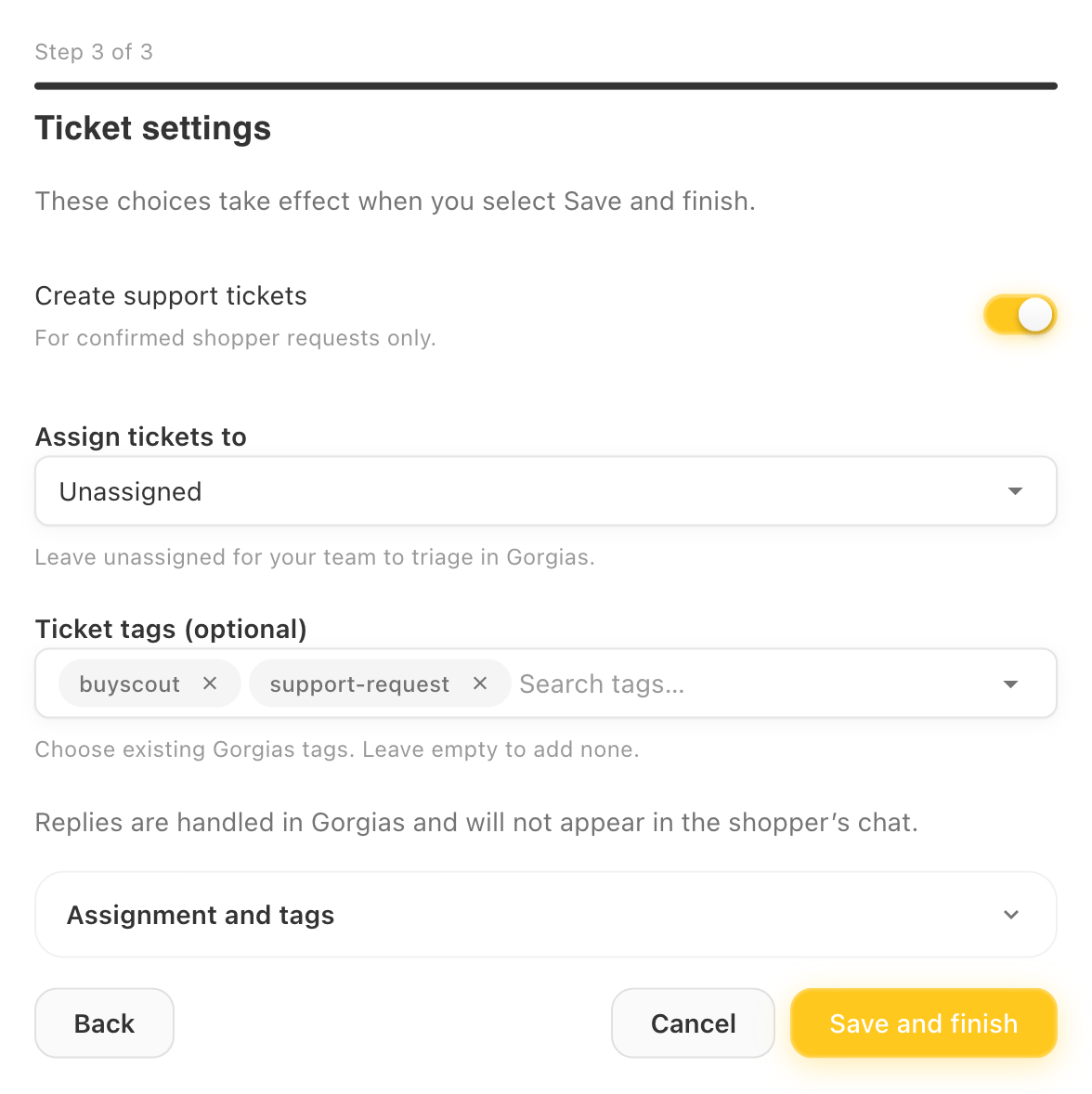
Choose where tickets go, then save. Sample data Save and finish
Select Save and finish. Gorgias shows Connected, and your settings apply right away.
Starting from Gorgias? When you install BuyScout® from the Gorgias App Store, you sign in to BuyScout® Dashboard and setup opens with your Gorgias account already entered. If you have more than one store, check that the setup names the store you want to connect, then select Next and continue from step 3.
Send a test ticket
After you connect, check that tickets reach Gorgias:
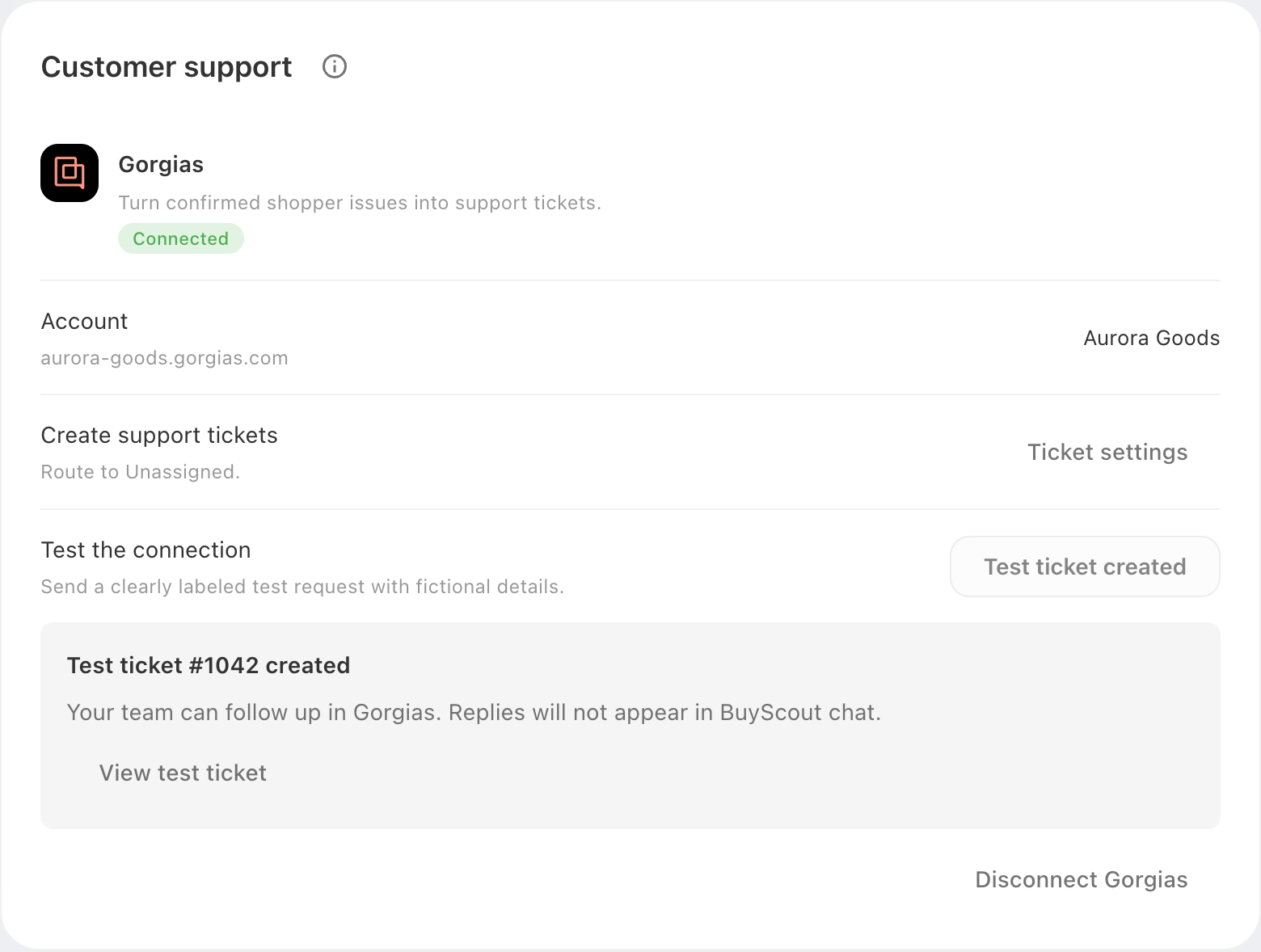
- Under Test the connection, select Create test ticket.
- When the test ticket is created, select View test ticket, then Open in Gorgias.
- In Gorgias, the ticket is titled
[BuyScout TEST] Connection testand uses a fictional customer,shopper@example.invalid. It has the assignment and tags you chose.
You can close the test ticket in Gorgias when you're done. Each connection can send one test ticket.
Change settings or disconnect
Change ticket settings. Select Ticket settings, make your changes, and select Save ticket settings. Changes apply right away. To pause tickets without disconnecting, turn off Create support tickets.
Reconnect. If the status shows Reconnect needed, Gorgias access has expired. Select Reconnect and approve access again. BuyScout® can't create tickets until you do, and existing tickets stay in Gorgias.
Disconnect. Select Disconnect Gorgias, then Disconnect. BuyScout® stops creating tickets for this store right away, and existing tickets stay in Gorgias. Disconnecting doesn't remove the BuyScout® app from your Gorgias account. To remove its access there too, delete the app in Gorgias under Settings > Apps > Installed Apps.
Troubleshooting
Find the message you see in BuyScout® Dashboard, then follow its steps.
- The Gorgias window doesn't open
- Authorization not completed
- The authorized Gorgias account does not match
- The account name isn't accepted
- Connection not completed
- Reconnect needed
- Connection unavailable
- Ticket was not created
- Creation unconfirmed
- Tickets stopped arriving
The Gorgias window doesn't open
Your browser blocked the pop-up. Allow pop-ups for BuyScout® Dashboard, then select Authorize in Gorgias again.
Authorization not completed
This appears when the Gorgias window was closed before you approved access, access wasn't approved, or approval took longer than 10 minutes. Select Authorize in Gorgias to try again. If you can't approve app access, ask your Gorgias admin.
The authorized Gorgias account does not match
You approved access while signed in to a different Gorgias account than the one you entered. Select Back and check the account name. Then sign in to that account in Gorgias and authorize again.
The account name isn't accepted
Enter only the account name, such as aurora-goods, or an address ending in .gorgias.com. Addresses that start with http://, include a port, or use another domain aren't accepted.
Connection not completed
Your choices are kept. Select Save and finish again. If it keeps failing, select Back to check the account, and check that the tags you chose still exist in Gorgias.
Reconnect needed
Gorgias access has expired. Select Reconnect and approve access again. Existing tickets stay in Gorgias.
Connection unavailable
BuyScout® Dashboard couldn't check the connection. Select Try again. Settings stay hidden until the check succeeds.
Ticket was not created
Gorgias rejected the request before creating a ticket, so it's safe to retry. For a test ticket, select Retry test ticket. A shopper can retry their own request from the chat. If it fails again, check the connection status, then contact us.
Creation unconfirmed
BuyScout® couldn't confirm whether Gorgias created the ticket. Don't send the request again yet, because that can create a duplicate. First check the original request: search Gorgias for the shopper's email address.
- If the ticket is there, follow up in Gorgias.
- If the request stays unconfirmed, handle the issue in Gorgias yourself. Then open the conversation under Customers in BuyScout® Dashboard and select Mark handled. This records that you handled it. It doesn't create or resend a ticket.
Tickets stopped arriving
Check that Gorgias shows Connected and that Create support tickets is on. Tickets are created only after a shopper sends a support request. If BuyScout® is uninstalled from your Shopify store, the Gorgias connection is turned off. After you reinstall, connect Gorgias again.
Get help
Email support@buyscout.ai with your store name and what you see on screen. For a ticket problem, include the shopper's email address and roughly when they sent the request.
For questions about Gorgias itself, see the Gorgias Help Center: